
You would be right to never consider Excel as a graphics program--it's not one, by any stretch o the imagination. However, Excel does provide some tools normally associated with graphics programs. One such tool is one that allows you to import a graphic image from either a camera or a scanner. To use this tool, choose Insert | Picture | From Scanner or Camera. Excel shows what devices are available and you can select how you want the image imported. (See Figure 1.)
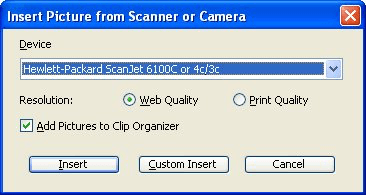
Figure 1. The Insert Picture from Scanner or Camera dialog box.
In reality, inserting pictures in this way works only if the camera or scanner is a TWAIN device. TWAIN is a protocol that allows images to be communicated from a source device (the camera or scanner) to a target device (in this case, Excel). For it to work properly, your scanner or camera must have the proper TWAIN drivers installed on your system.
Most scanners come with TWAIN drivers, but a growing number of today's digital cameras do not. Instead, the non-TWAIN cameras connect to a PC via a USB connector, and are then seen by Windows as just another disk drive accessible from the computer. If your camera uses a USB connection, then you can insert a picture into Excel by using Insert | Picture | From File and selecting the picture from the camera itself.
ExcelTips is your source for cost-effective Microsoft Excel training. This tip (3001) applies to Microsoft Excel 97, 2000, 2002, and 2003.

Program Successfully in Excel! This guide will provide you with all the information you need to automate any task in Excel and save time and effort. Learn how to extend Excel's functionality with VBA to create solutions not possible with the standard features. Includes latest information for Excel 2024 and Microsoft 365. Check out Mastering Excel VBA Programming today!
Background images for a worksheet are automatically repeated over and over (tiled) by Excel. This tip describes a ...
Discover MoreWhen creating a chart, you may want to adjust the default scaling that Excel applies to an axis. This is relatively easy ...
Discover MoreWant to draw a few simple shapes or lines on your worksheet? It really is simple; here's how to do it.
Discover MoreFREE SERVICE: Get tips like this every week in ExcelTips, a free productivity newsletter. Enter your address and click "Subscribe."
There are currently no comments for this tip. (Be the first to leave your comment—just use the simple form above!)
Got a version of Excel that uses the menu interface (Excel 97, Excel 2000, Excel 2002, or Excel 2003)? This site is for you! If you use a later version of Excel, visit our ExcelTips site focusing on the ribbon interface.
FREE SERVICE: Get tips like this every week in ExcelTips, a free productivity newsletter. Enter your address and click "Subscribe."
Copyright © 2026 Sharon Parq Associates, Inc.

Comments