
Please Note: This article is written for users of the following Microsoft Excel versions: 2002 and 2003. If you are using a later version (Excel 2007 or later), this tip may not work for you. For a version of this tip written specifically for later versions of Excel, click here: Evaluating Formulas.
Often it is frustrating to figure out exactly how Excel arrives at a particular result—particularly if the formula returning the result is quite complex. Fortunately, Excel provides a tool you can use to help figure out what is going on when Excel evaluates a formula. To access this tool, follow these steps:
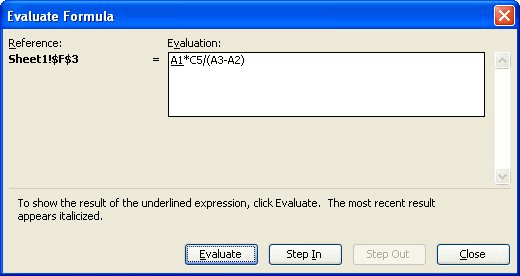
Figure 1. The Evaluate Formula dialog box.
At this point, Excel shows the full formula from the cell, and part of it is underlined. This underlined area represents the part of the formula that Excel will next evaluate. This allows you to see what intermediate steps Excel follows in arriving at a result. Every time you click the Evaluate button, Excel replaces the underlined portion of the formula with a result.
Nothing you do with the formula evaluator actually affects the formula in your worksheet; it remains unchanged. Instead, Excel simply shows you what happens as it works through each part of the formula to arrive at a result. When you are done using the formula evaluator, click the Close button.
ExcelTips is your source for cost-effective Microsoft Excel training. This tip (2999) applies to Microsoft Excel 2002 and 2003. You can find a version of this tip for the ribbon interface of Excel (Excel 2007 and later) here: Evaluating Formulas.

Professional Development Guidance! Four world-class developers offer start-to-finish guidance for building powerful, robust, and secure applications with Excel. The authors show how to consistently make the right design decisions and make the most of Excel's powerful features. Check out Professional Excel Development today!
Looking for a formula that can return the address of a cell containing a text string? Look no further; the solution is in ...
Discover MoreIf you have a lot of values in a single row, you might want to pull the last non-zero value from that row. There are a ...
Discover MoreIf you have a list of data in a column, you may want to determine an average of whatever the last few items are in the ...
Discover MoreFREE SERVICE: Get tips like this every week in ExcelTips, a free productivity newsletter. Enter your address and click "Subscribe."
2016-12-05 13:24:15
Willy Vanhaelen
@Thomas
Even shorter, instead of Ctrl+= you can simply press F9.
2016-12-04 03:26:52
Thomas Papavasiliou
Another alternative:
In edit mode, select the part of the formula you want to evaluate and press Ctrl+=
Excel evaluates that part and displays it in the formula bar.
If you are happy with the result, press Enter and the evaluated part replaces the selection. If you press escape you get back to your original formula.
Got a version of Excel that uses the menu interface (Excel 97, Excel 2000, Excel 2002, or Excel 2003)? This site is for you! If you use a later version of Excel, visit our ExcelTips site focusing on the ribbon interface.
FREE SERVICE: Get tips like this every week in ExcelTips, a free productivity newsletter. Enter your address and click "Subscribe."
Copyright © 2026 Sharon Parq Associates, Inc.
 Please Note:
This article is written for users of the following Microsoft Excel versions: 2002 and 2003. If you are using a later version (Excel 2007 or later), this tip may not work for you. For a version of this tip written specifically for later versions of Excel, click here:
Please Note:
This article is written for users of the following Microsoft Excel versions: 2002 and 2003. If you are using a later version (Excel 2007 or later), this tip may not work for you. For a version of this tip written specifically for later versions of Excel, click here: 
Comments