
Please Note: This article is written for users of the following Microsoft Excel versions: 97, 2000, 2002, and 2003. If you are using a later version (Excel 2007 or later), this tip may not work for you. For a version of this tip written specifically for later versions of Excel, click here: Determining Your Version of Excel.

Written by Allen Wyatt (last updated November 5, 2022)
This tip applies to Excel 97, 2000, 2002, and 2003
The instructions for some of the tips you see featured in ExcelTips vary depending on the version of Excel you are using. If you are a relative newcomer to Excel, you may not know exactly how to determine which version you are using.
There are a couple of ways you can figure out which version you are using. The first is to watch Excel as you start the program. Depending on the speed of your system, you may notice the version in the splash screen that appears as Excel starts up. (I say that this depends on the speed of your system because I've seen some systems that are so fast, the splash screen is gone before anyone can fully see everything that is on it.)
Once you have started Excel, there is a better way to figure out your version: Choose About Microsoft Excel from the Help menu. Excel displays the About Microsoft Excel dialog box. (See Figure 1.)
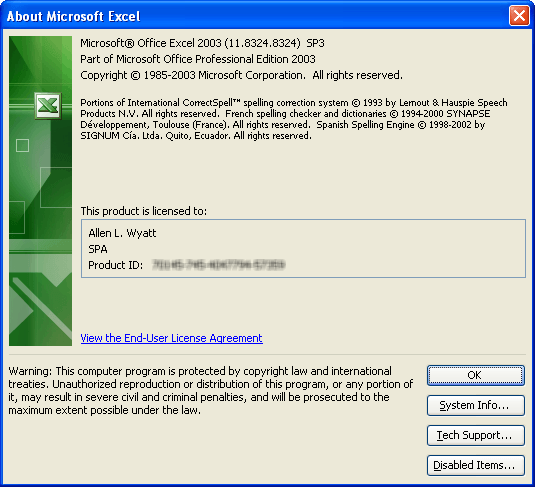
Figure 1. The About Microsoft Excel dialog box.
Note that near the top of the dialog box you can see the version number you are using. When you are through reviewing the information, click OK to close the dialog box.
You can also use a single-line macro that will show you your Excel version:
Sub MyVersion()
    MsgBox Application.Version
End Sub
The macro pops up a dialog box that shows a number, such as 8.0, 9.0, 10.0, etc. The versions for which this tip was created are Excel 97 (8.0), Excel 2000 (9.0), Excel 2002 (10.0), and Excel 2003 (11.0). (If you get a larger number, you are using a later version of Excel and should really follow the link in the following paragraph to the tip applicable to your version of Excel.)
ExcelTips is your source for cost-effective Microsoft Excel training. This tip (2959) applies to Microsoft Excel 97, 2000, 2002, and 2003. You can find a version of this tip for the ribbon interface of Excel (Excel 2007 and later) here: Determining Your Version of Excel.

Professional Development Guidance! Four world-class developers offer start-to-finish guidance for building powerful, robust, and secure applications with Excel. The authors show how to consistently make the right design decisions and make the most of Excel's powerful features. Check out Professional Excel Development today!
Want to move around in dialog boxes using just the keyboard? You'll love the ideas in this tip, then.
Discover MoreIf you apply a fill color to a range of cells and notice that the color doesn't show up on the screen, it could be ...
Discover MoreExcel 2002 and 2003 include a Task pane that provides quick access to common tasks. The Task pane is normally visible ...
Discover MoreFREE SERVICE: Get tips like this every week in ExcelTips, a free productivity newsletter. Enter your address and click "Subscribe."
There are currently no comments for this tip. (Be the first to leave your comment—just use the simple form above!)
Got a version of Excel that uses the menu interface (Excel 97, Excel 2000, Excel 2002, or Excel 2003)? This site is for you! If you use a later version of Excel, visit our ExcelTips site focusing on the ribbon interface.
FREE SERVICE: Get tips like this every week in ExcelTips, a free productivity newsletter. Enter your address and click "Subscribe."
Copyright © 2026 Sharon Parq Associates, Inc.
 Please Note:
This article is written for users of the following Microsoft Excel versions: 97, 2000, 2002, and 2003. If you are using a later version (Excel 2007 or later), this tip may not work for you. For a version of this tip written specifically for later versions of Excel, click here:
Please Note:
This article is written for users of the following Microsoft Excel versions: 97, 2000, 2002, and 2003. If you are using a later version (Excel 2007 or later), this tip may not work for you. For a version of this tip written specifically for later versions of Excel, click here:
Comments